




Email Domain Records
With transferring a domain, there is a chance that your email may not work. Your business email uses a custom domain (like you@yourcompany.com), certain DNS records must be configured to ensure emails send and receive properly. These records help verify your domain, route messages correctly, and protect against spam or impersonation.
To get your email back up and running, we just need the right records to add. Below are steps on how to find these records, so we can add them back into the domain.
If you do not see the email provider you use or you need assistance, reply to the email and we’ll guide you through the process.
Let us know if you have any questions.
Below are the steps you want to take to give CCStorage Microsoft Outlook email dns records. If you are having issues and need assistance, reply to the email and we’ll guide you through the process.
Step 1
Sign in to the Microsoft 365 Admin Center > In the left-hand menu, go to Settings > Domains. (If you don't see "Settings" click "Show all" first).
Click on the domain name you are setting up > Select the DNS records tab > Select "Add your own DNS records" if prompted.
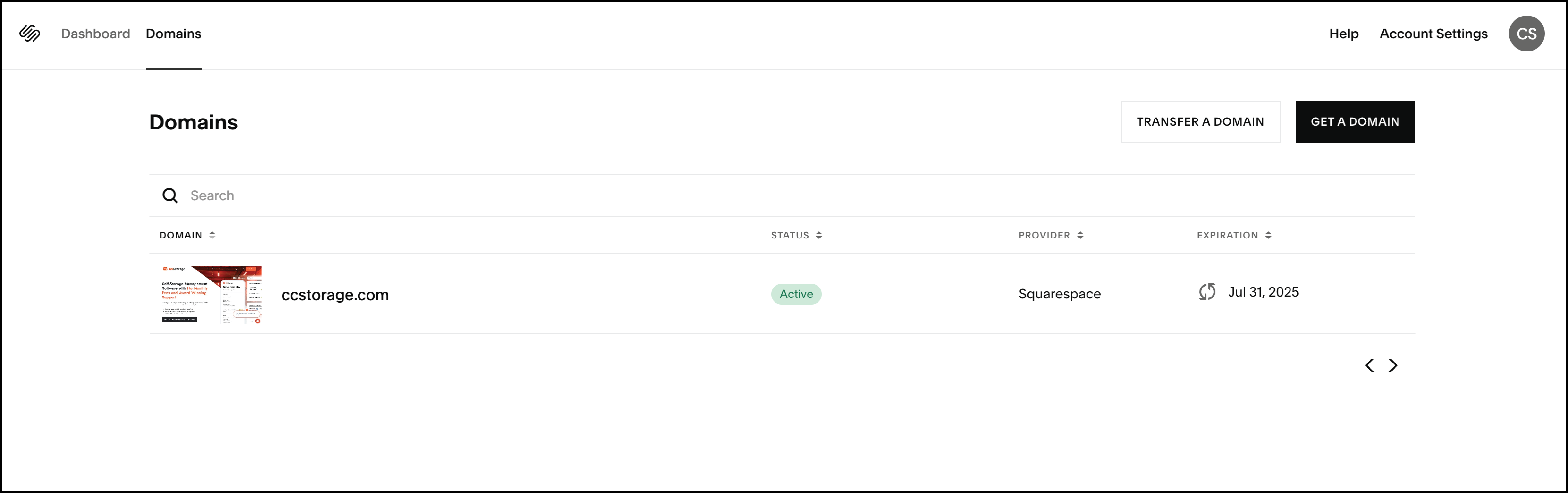
Disclaimer: If the setup is currently incomplete, click Continue setup to reach the "Add DNS records" page. Ensure "Exchange and Exchange Online Protection" is selected to view the values.
Step 2
You will need to copy the exact values shown in your Admin Center, but here is the standard format your provider will be looking for:
MX Record (routes mail to Microsoft 365)
-
Type: MX
-
Host/Alias: @
-
Points to/Target: (Copy the value from the admin center, usually looks like: yourdomain-com.mail.protection.outlook.com)
-
Priority: 0 (or the highest priority available)
-
TTL: 3600 (1 hour)
Autodiscover CNAME Record (Recommended - for automatic Outlook configuration)
-
Type: CNAME
-
Host/Alias: autodiscover
-
Target: autodiscover.outlook.com
-
TTL: 3600 (1 hour)
SPF TXT Record (prevents your email from going to Spam)
-
Type: TXT
-
Name/Host: @
-
Value: v=spf1 include:spf.protection.outlook.com -all (Note: If you have other email services, they must be merged into this single line).
Step 3
Once you have those records, send that over to our team and we can add it. Make sure to paste the records into the email so we can paste the exact code you give us. That way everything is correct.
Below are the steps you want to take to give CCStorage Google Workspace email dns records. If you are having issues and need assistance, reply to the email and we’ll guide you through the process.
Step 1
The Google Workspace MX record value is smtp.google.com. We will need to add this record into your domain settings so your domain registrar knows to send incoming mail to Google for delivery.
Google uses the same email record for every email. So we can add this record for already. Just let us know and we can do that. Below is the record we will be adding.
-
Type: MX
-
Name / Host / Alias: Leave this blank, or enter @
If you're adding a subdomain to an existing Google Workspace account, enter the subdomain value in this field. (Example: For the subdomain support.your-company.com, you would enter support)
-
TTL: Use your domain registrar's default value, or enter 1
-
Priority: 1
-
Value / Answer / Destination: smtp.google.com
Important: Follow your domain registrar's preferred format. For example, some domain registrars require a period at the end (smtp.google.com.). Other domain registrars, like Squarespace and Wix, have a preset option you can choose without typing anything.
We hope this guide has helped you get your email back up and running. We will be updating this frequently with more email providers once we have experience with them. If your email provider is not here, or you need assistance, reply to the email and we’ll guide you through the process.
Thank you for choosing CCStorage
